Using Google Services on Huawei Devices via microG
This guide only applies to Huawei devices running Android (e.g. HarmonyOS-based Android releases). It does not apply to HarmonyOS NEXT, since that isn’t Android-based and isn’t compatible with the Android app ecosystem.
There are generally two ways to get Google services on a Huawei device:
- Virtual sandbox: run Google apps inside a virtual environment
- microG: replace part of Google’s services with microG, paired with Aurora Store for downloading apps
This guide covers the second approach.
Install microG
Section titled “Install microG”First, download microG’s two core components:
- microG Services Core
- microG Companion
These replace Google Play Services functionality and provide part of the Google Play Store interface, respectively. Get them from microG’s official GitHub repo:
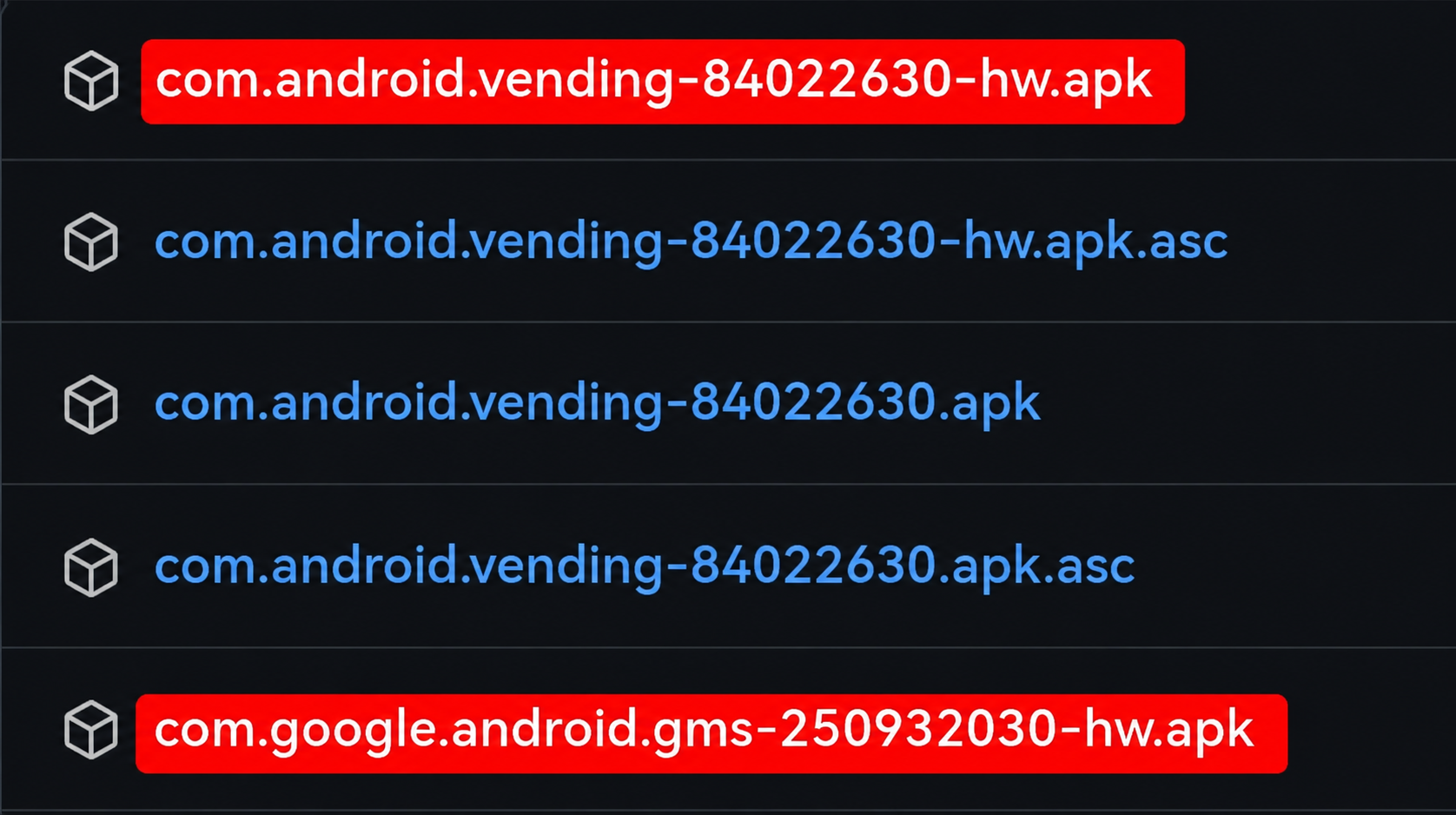
Download these two APKs:
-
com.android.vending-xxxx-hw.apk- microG Companion (provides part of the Google Play Store interface)
-
com.google.android.gms-xxxx-hw.apk- microG Services Core (replaces Google Play Services)
Note: on Huawei devices, pick the version with the hw suffix.
Install GsfProxy
Section titled “Install GsfProxy”With the services framework in place, you also need GsfProxy. It provides Google Services Framework-related interfaces that some apps need to register the device correctly. GsfProxy is made by the same author as microG — get it from this repo:
This repo only contains a single file — that’s the GsfProxy installer.
Configure microG
Section titled “Configure microG”After installing the three apps above, you need to configure the microG service. That means opening the app itself, though on some devices it won’t show up on the home screen.
If it’s on your home screen, just open it directly. If not, follow these steps: go to Settings / App Management / microG Services, then tap the settings icon on the right.
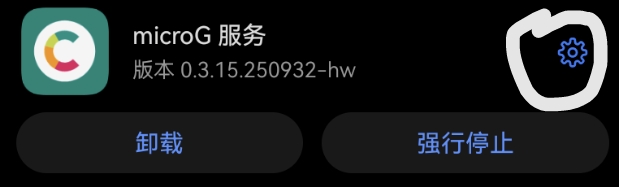 Once inside microG’s settings, tap “Self-check” first and grant all the requested permissions. On some devices, the “interact across profiles” permission can’t be granted — that was the case on my own tablet, but it didn’t seem to cause any issues in practice.
After granting permissions, you can sign in to your Google account under the “Google Accounts” section.
Replace the Play Store
Section titled “Replace the Play Store”Next, you’ll need a Play Store replacement — Aurora Store works well. You can get it from F-Droid. Aurora Store is an open-source Google Play Store client that supports anonymous app downloads.
Summary
Section titled “Summary”microG now supports a large number of apps that require the Google framework, and more and more Google-dependent apps — including some popular AI apps like ChatGPT — run fine under microG. That said, microG isn’t official Google Mobile Services (GMS), so it can’t be a 100% replacement.
Still, for Huawei Android devices, microG + Aurora Store is a reasonably mature setup that covers most everyday app needs.
A few things to keep in mind:
- Some apps that depend on the full Google Play Services stack may not run
- Some apps actively check for Google service status
- A stable network connection is recommended
- On some devices, turning off a VPN can cause apps to detect an abnormal Google-service state — how common this is depends on the device and app